


Description
Download Mouseless Browsing – keyboard navigation, mouse‑free browsing, Firefox add‑on
Overview
Mouseless Browsing is a niche Firefox add‑on designed for users who prefer to keep their hands on the keyboard rather than juggling a mouse. Once installed, the extension overlays a small icon in the lower‑right corner of the browser window and begins assigning numeric IDs to every clickable link on a page. By typing the displayed number and pressing Enter, the extension simulates a mouse click, instantly activating the link. Holding Ctrl while confirming the number triggers an immediate click, and holding Alt opens the target in a new tab. Navigation commands such as Back, Forward, Reload, and even scrolling can be executed with single‑key shortcuts, turning the entire browsing experience into a series of fast keystrokes.
The concept targets power users, developers, and anyone who spends long hours in front of a screen and wants to reduce hand movement. While the idea is compelling, the implementation comes with trade‑offs. Numbers are superimposed on every link, which can make pages look cluttered, especially on content‑heavy sites. Additionally, some dynamic pages (e.g., Gmail, Google Docs) do not receive IDs for all interactive elements, leading to occasional reliance on the mouse. The learning curve is steep: users must memorize a small set of commands and become comfortable with the visual numbering system before they can reap the speed benefits.
Despite these drawbacks, Mouseless Browsing shines in scenarios where browsing is primarily about reading articles, watching videos, or navigating static documentation. In those contexts, the overhead of mouse movement is eliminated, and the keyboard‑only workflow can feel surprisingly fluid after a brief acclimation period. The add‑on is free, open‑source, and receives periodic updates to fix bugs such as missing IDs, frame‑focus issues, and shortcut conflicts. For keyboard enthusiasts, it offers a unique way to reclaim precious seconds and reduce repetitive strain.
Feature Set
- Automatic numeric labeling of every hyperlink on a loaded page.
- Enter key to “click” a link after typing its number.
- Ctrl + Number for immediate click without the extra Enter.
- Alt + Number opens the link in a new tab, preserving the current view.
- Single‑key shortcuts for Back, Forward, Reload, Stop, and Home.
- Scroll shortcuts (↑ ↓ ← →) that work inside frames and iframes.
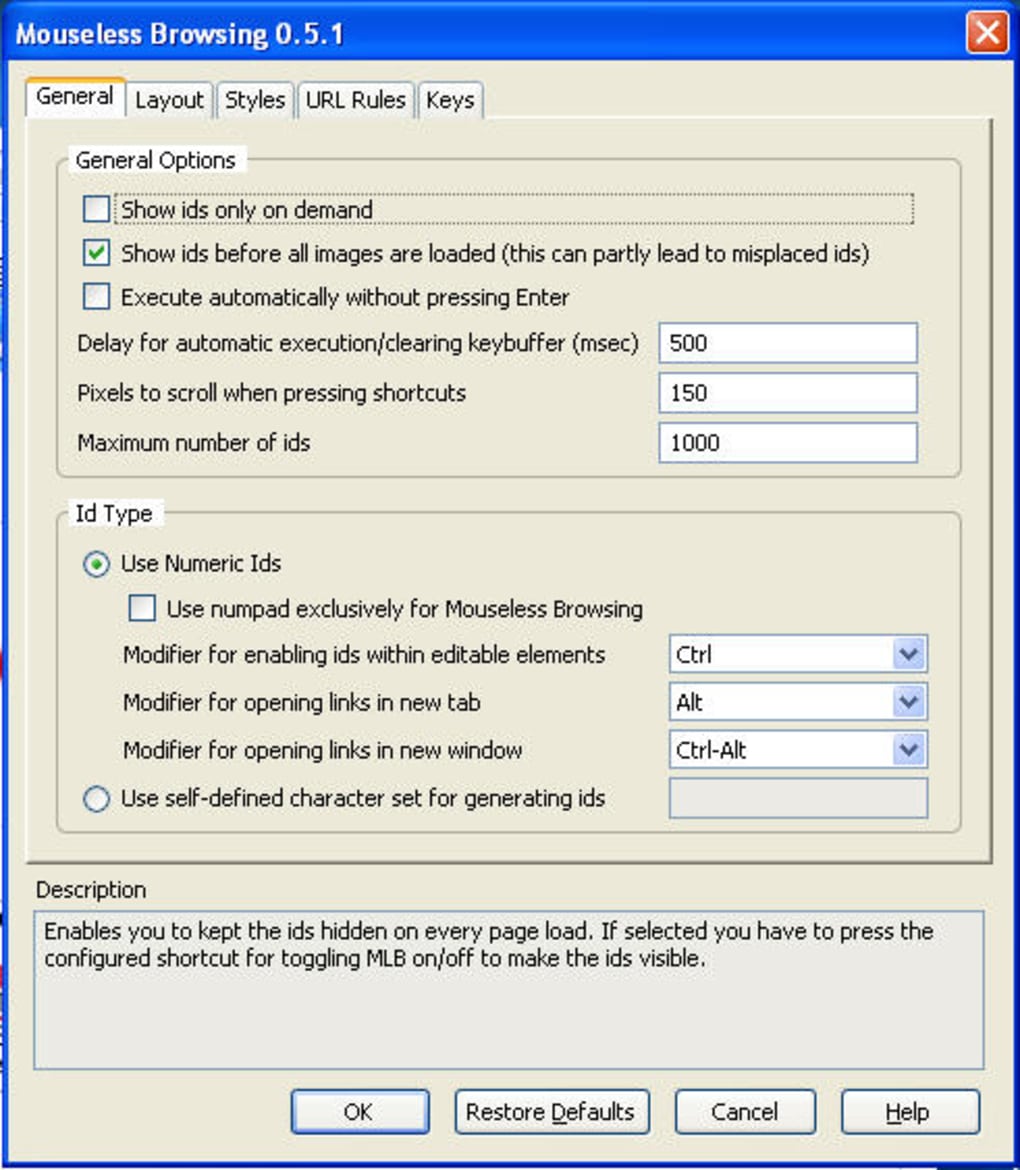
- Option to show IDs only on demand, reducing visual clutter.
- Customizable ID character set to avoid conflicts with existing page IDs.
- Bug‑fix updates that address missing links, frame focus, and shortcut glitches.
- Lightweight footprint – the add‑on runs silently in the background without noticeable CPU spikes.
Each feature is aimed at eliminating the need for a pointing device while preserving full browsing capability. The “show IDs on demand” setting, for example, allows users to toggle the numeric overlay with a single shortcut, keeping the page clean during normal reading. The customizable character set is particularly useful for developers who test pages that already contain numeric IDs; Mouseless Browsing can shift to alphabetic or custom symbols to avoid duplication. Moreover, the scroll shortcuts respect the current frame focus, which resolves a common complaint where scrolling would jump to the top‑level page instead of the intended sub‑frame.
The add‑on also integrates with Firefox’s native tab management. Users can switch directly to a specific tab by typing the tab number (e.g., “10” for the tenth tab) after enabling the appropriate setting. This synergy between link navigation and tab handling creates a cohesive, mouse‑free environment. While the feature list may appear extensive, the core workflow remains simple: identify the number, press the associated key, and continue browsing—all without ever moving a cursor.
Installation, Compatibility & Usage Guide
How to Install
1. Open Firefox and navigate to the official Mouseless Browsing add‑on page.
2. Click the “Add to Firefox” button and confirm the permissions request.
3. After installation, a tiny icon appears in the lower‑right corner of the browser window, indicating that the extension is active.
4. Access the options panel by right‑clicking the icon; here you can enable “Show IDs on demand,” adjust the shortcut keys, and choose the ID character set.
System Requirements
Mouseless Browsing is built specifically for the Firefox browser on desktop platforms. It runs on Windows 10/11, macOS 10.15 and later, and Linux distributions that support the latest Firefox release. Mobile versions of Firefox are not supported, as the overlay relies on desktop‑style keyboard shortcuts.
Everyday Usage
Once active, the extension automatically scans the DOM of each loaded page and injects numeric IDs next to every tag. The numbers are displayed in a small, semi‑transparent badge that does not interfere with the page layout. To navigate:
- Press the shortcut (default: Ctrl + Space) to toggle the ID overlay if you have disabled “show on demand.”
- Identify the number associated with the desired link.
- Type the number on the keyboard.
- Press Enter to click, Ctrl + Enter for an immediate click, or Alt + Enter to open in a new tab.
- Use single‑key shortcuts: B for Back, F for Forward, R for Reload, and H for Home.
The add‑on also supports frame navigation. When a page contains iframes, you can switch focus using Ctrl + F and then use the numeric IDs within that frame. Scrolling inside a frame works with the arrow keys once the frame has focus.
Pros & Cons
- Pros
- Eliminates mouse movement, reducing hand fatigue for long sessions.
- Fast, deterministic navigation once numbers are memorized.
- Works entirely offline after installation—no external servers required.
- Highly customizable shortcuts and ID character set.
- Free and open‑source, with regular bug‑fix releases.
- Cons
- Number overlay can make pages look cluttered, especially on content‑rich sites.
- Dynamic web apps (e.g., Gmail, Google Docs) may miss some interactive elements.
- Steep learning curve; users must memorize shortcuts and the overlay system.
- Not compatible with mobile Firefox or other browsers.
- Occasional focus bugs in complex frames, though recent updates have mitigated most issues.
FAQ & Conclusion
Does Mouseless Browsing work on all websites?
It works on most static and semi‑dynamic sites, but complex web applications that generate links via JavaScript (like Gmail or Google Drive) may have missing IDs. The add‑on tries to capture as many links as possible, but some interactive elements might still require the mouse.
Can I customize the shortcut keys?
Yes. In the options panel (accessed by right‑clicking the extension icon) you can remap every command, including the toggle for showing IDs, navigation shortcuts, and the “open in new tab” modifier.
Is the extension safe and privacy‑respecting?
Mouseless Browsing runs locally in your browser and never transmits data to external servers. It only reads the DOM of the pages you visit to assign IDs, so it does not collect personal information.
What operating systems are supported?
The add‑on works on any desktop operating system that can run the latest version of Firefox, including Windows 10/11, macOS 10.15+, and most Linux distributions.
How often is Mouseless Browsing updated?
The developer releases updates roughly every 2–3 months, focusing on bug fixes (missing IDs, frame focus, shortcut conflicts) and occasional performance improvements.
Final Thoughts and Call to Action
Mouseless Browsing is a bold experiment in rethinking how we interact with the web. For users who spend hours scrolling through articles, documentation, or news feeds, the ability to keep both hands on the keyboard can translate into a smoother, less tiring experience. The trade‑off—visual clutter and a learning curve—means the tool isn’t for everyone, but for keyboard enthusiasts and accessibility advocates it offers a compelling alternative to the traditional mouse‑centric paradigm.
If you’re curious about shaving a few seconds off each navigation step and reducing repetitive mouse movements, give Mouseless Browsing a try. The installation process is straightforward, the add‑on is free, and the community-driven updates show a commitment to refinement. Remember to explore the options panel to tailor the overlay to your workflow, and give yourself a short adjustment period—most users find the speed gains become apparent after the first dozen pages.
Ready to experience mouse‑free browsing? Download Mouseless Browsing now and transform the way you surf the web. Your keyboard is already waiting to become your primary navigation tool.
Guides & Tutorials for Mouseless Browsing
How to install Mouseless Browsing
- Click the Preview / Download button above.
- Once redirected, accept the terms and click Install.
- Wait for the Mouseless Browsing download to finish on your device.
How to use Mouseless Browsing
This software is primarily used for its core features described above. Open the app after installation to explore its capabilities.
User Reviews for Mouseless Browsing 0
No reviews found





